
**Joystick Mapper MacOs – Cấu hình tay cầm chơi game trên Mac**
Giải phóng sức mạnh chơi game trên MacBook của bạn với Joystick Mapper – công cụ tối thượng giúp bạn tùy chỉnh tay cầm chơi game yêu thích. Biến mọi nút bấm, trục analog hay D-pad thành tổ hợp phím tắt, hành động chuột hoặc lệnh điều khiển tùy chỉnh, mở ra thế giới giải trí không giới hạn!
**Tại sao chọn Joystick Mapper?**
* **Tương thích đa dạng:** Hoạt động mượt mà với hầu hết các tay cầm USB và Bluetooth phổ biến (Xbox, Logitech, PlayStation, v.v.).
* **Tùy chỉnh không giới hạn:** Mô phỏng mọi thao tác từ bàn phím và chuột, ngay cả với các game không hỗ trợ tay cầm gốc.
* **Trải nghiệm mượt mà:** Điều chỉnh độ nhạy chuột và trục analog cho từng hướng riêng biệt, mang lại cảm giác điều khiển chính xác nhất.
* **Giao diện thân thiện:** Dễ dàng thiết lập cấu hình với giao diện trực quan, phù hợp cho mọi người dùng cá nhân.
**Yêu cầu hệ thống:**
* **Phiên bản macOS:** Yêu cầu macOS 10.9 (Mavericks) trở lên.
* **Cấu hình tối thiểu:** Dung lượng lưu trữ nhỏ và một chiếc Mac đủ sức chạy macOS 10.9.
**Nâng tầm trải nghiệm game của bạn ngay hôm nay!** Biến chiếc Mac của bạn thành cỗ máy chơi game mạnh mẽ, tùy chỉnh mọi thứ theo cách bạn muốn!
Joystick Mapper là ứng dụng tương tự GamePad Companion mà mình đã giới thiệu trước đây. Joystick Mapper trên Mac cho phép bạn cấu hình tay cầm chơi game của bạn thay cho bàn phím/ chuột.. Do đó bạn có thể dễ dàng chơi game với Gamepad ngay cả khi game đó không hỗ trợ.
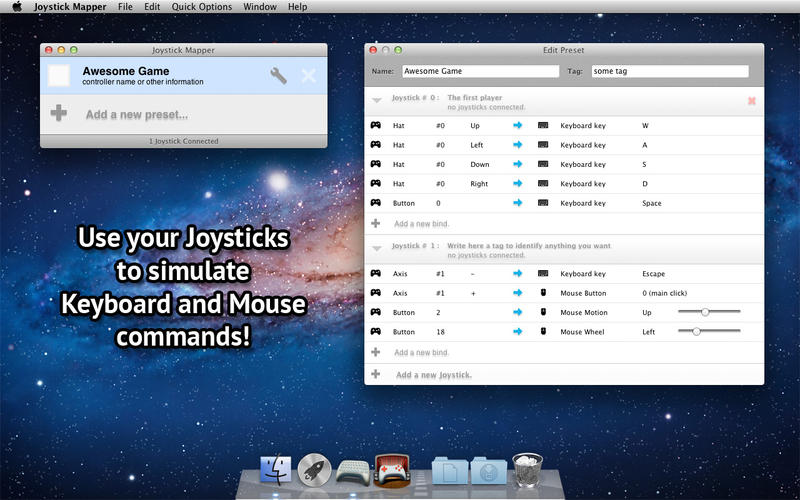
Joystick Mapper tương thích tốt với các game thể loại First Person Shooters, Flash Games, Media Players, PES, Football…
Joystick Mapper Hoạt động tốt với nhiều gamepads, bao gồm Xbox 360 và PS3….
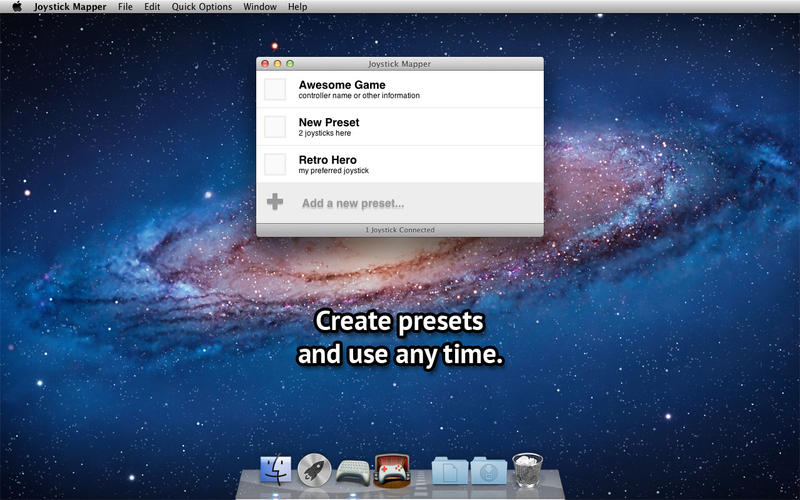
Features:
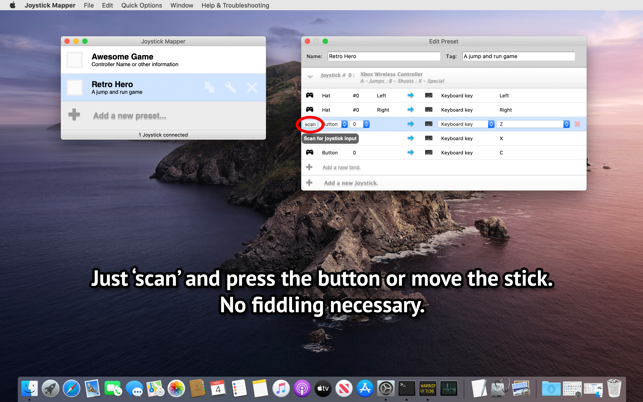
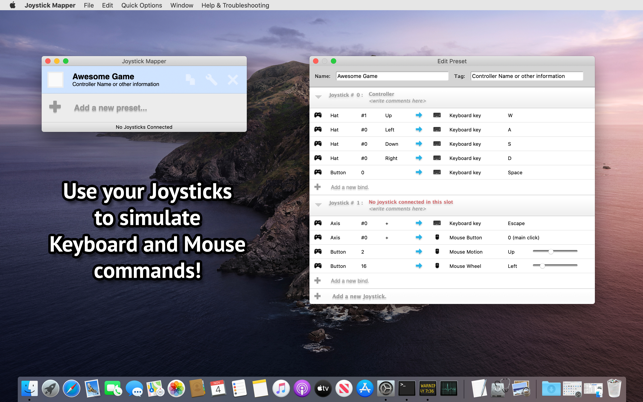
* Use any axis, dpads or buttons on your joystick to simulate keyboard and mouse;
* Map any of the 4 directions from an Analog Stick independently;
* Smooth mouse movement;
* Adjust mouse speed for analog sticks per direction individually, this can help with crappy gamepads;
* Analog Shoulder Triggers can be used as buttons;
* Any “weird” combination you want:
* Button/Dpad/Analog Stick/Analog Trigger –> Keyboard/Mouse/Click/Scroll;
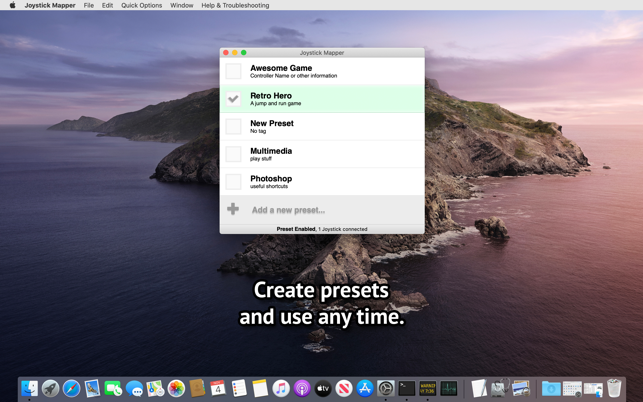
* Ready-to-use examples, easily modifiable;
* Compatible with USB and Bluetooth Joysticks;
* Easy to use interface.
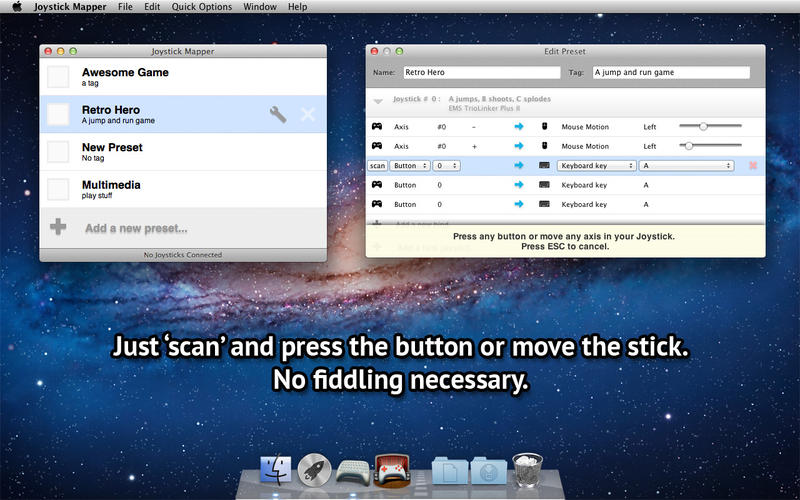
Notes:
* To map Key-Combinations like Command+Q, just map two or more keys to the same input (in this example, one for Command and another for Q);
* Compatible with controllers that does use the standard HID Joystick interface;
* You may need to install a third party driver for Xbox controllers, you can find links to them in the Support site FAQ;
* If your PS3 gamepad does not respond to any input when connected using USB, just press the central “PS” button once;
* Wireless Xbox 360 Gamepads, sadly, does not use Bluetooth, you may need an adapter in this case. Search on the web for “Microsoft Wireless Gaming Receiver”;
* Other similar apps may prevent Joystick Mapper from operating correctly, if you have one and have problems, please disable them before using Joystick Mapper
Joystick.Mapper.v1.1.3
Joystick.Mapper.v1.2

