Carbon Copy Cloner MacOs – Backup và khôi phục dữ liệu

Admin

03/12/2025

Share

1621346676 carbon copy cloner 6

## 🌟 Carbon Copy Cloner cho macOS: Người Bạn Đồng Hành Tin Cậy Cho Việc Sao Lưu và Khôi Phục Dữ Liệu Cá Nhân 🌟

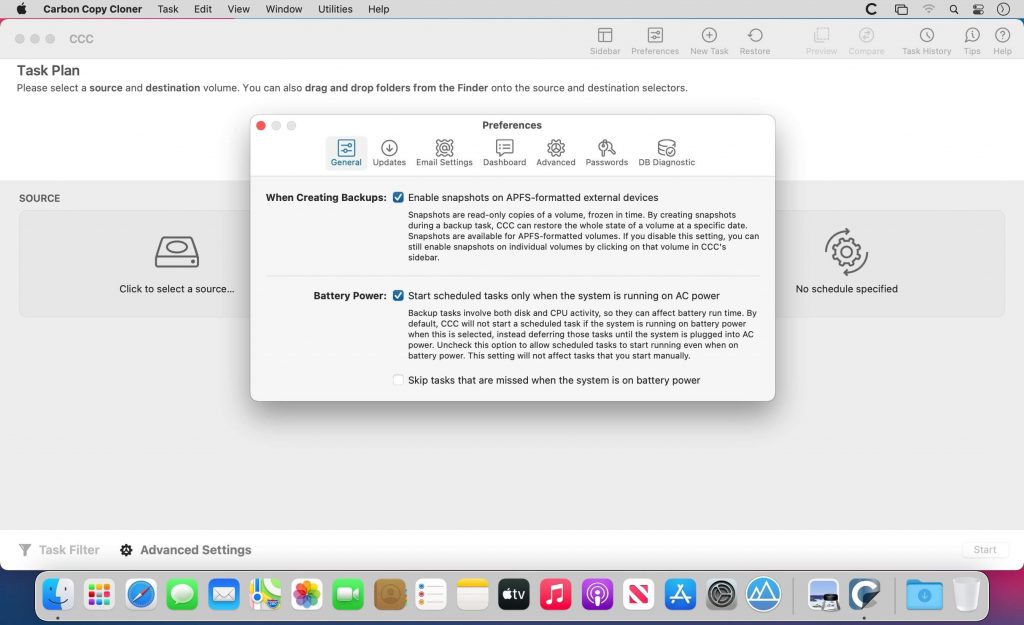
Bạn đang tìm kiếm một giải pháp sao lưu và khôi phục dữ liệu mạnh mẽ, đáng tin cậy cho chiếc MacBook của mình? 💻 Carbon Copy Cloner (CCC) chính là câu trả lời! Được thiết kế đặc biệt cho người dùng macOS, CCC mang đến khả năng tạo bản sao lưu toàn diện, giúp bạn bảo vệ mọi dữ liệu quan trọng khỏi những rủi ro không mong muốn. 🛡️

CCC không chỉ đơn thuần là một công cụ sao chép tệp tin. Nó cho phép bạn tạo ra một bản **clone có khả năng khởi động** 🚀, nghĩa là bạn có thể khôi phục toàn bộ hệ thống của mình một cách nhanh chóng ngay cả khi ổ cứng gặp sự cố. 💥 Tính năng **lập lịch sao lưu tự động** ⏰ giúp bạn yên tâm rằng dữ liệu luôn được cập nhật hàng ngày, hàng tuần hoặc hàng tháng mà không cần thao tác thủ công.

Ngoài ra, CCC còn cung cấp khả năng **tạo snapshot** 📸, cho phép bạn quay ngược thời gian để khôi phục các tệp tin đã xóa nhầm hoặc các phiên bản cũ của tài liệu. 📄 Điều này cực kỳ hữu ích để bảo vệ bạn khỏi việc vô tình xóa nhầm dữ liệu hoặc bị tấn công bởi mã độc tống tiền. 🦠

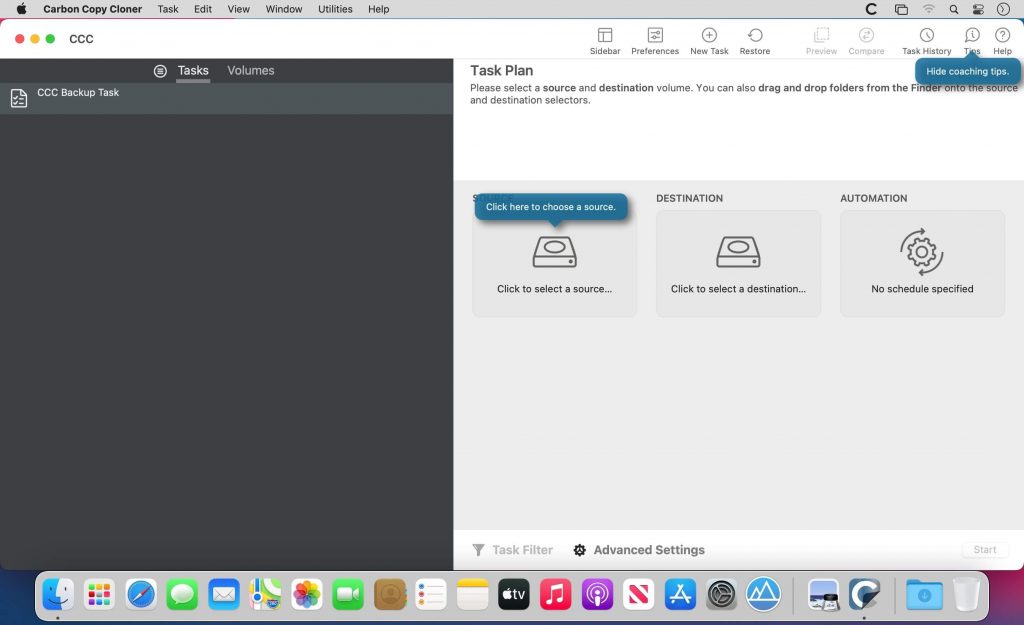
Với giao diện **trực quan và dễ sử dụng** ✨, ngay cả người dùng cá nhân cũng có thể nhanh chóng làm quen và thiết lập các tác vụ sao lưu tùy chỉnh. CCC còn hỗ trợ sao lưu dữ liệu đám mây ☁️, đảm bảo rằng không có tệp tin quan trọng nào bị bỏ sót.

**Yêu cầu Hệ thống:**
Để cài đặt và sử dụng Carbon Copy Cloner, máy Mac của bạn cần chạy **macOS 10.15 Catalina trở lên**. 🍏
Cấu hình tối thiểu bao gồm bộ xử lý **Intel hoặc Apple Silicon**, **500 MB dung lượng trống** trên ổ cứng và một **thiết bị lưu trữ ngoài** External drive (USB, Thunderbolt) để chứa bản sao lưu. 💾

Hãy để Carbon Copy Cloner bảo vệ tài sản số quý giá của bạn, mang đến sự an tâm tuyệt đối cho công việc và cuộc sống số của bạn! 👍💯

CarbonCopyCloner là công cụ hữu hiệu giúp bạn tạo bản sao lưu ổ cứng và phục hồi lại nó khi cần thiết, chức năng tương tự Ghost trên Windows

Để khôi phục lại nhanh chóng khi cần thiết ngay cả khi máy tính của bạn gặp bất cứ sự cố nào. Người dùng có thể lên lịch trình để sao lưu theo các mốc thời gian định trước và tự động sắp xếp lại các bản sao lưu.

Carbon Copy Cloner for Mac cho phép bạn sao lưu các dữ liệu trên ổ cứng, chuyển ổ cứng cũ sang ổ cứng mới, rất cần thiết trong trường hợp bạn mất đĩa DVD trên hệ điều hành Mac. Các dữ liệu sẽ được lưu trữ trong một môi trường an toàn và được khôi phục lại nhanh chóng khi bạn cần. Bạn cũng có thể tiến hành sao lưu sang ổ cứng, ổ đĩa mạng hoặc ảnh đĩa.

Carbon Copy Cloner for Mac giúp người dùng thiết lập các chế độ bảo vệ dữ liệu nhằm ngăn chặn tình trạng mất dữ liệu do một hành động sau lầm nào đó. Các thay đổi sao lưu sẽ được cập nhật liên tục để người dùng có thể tìm thấy nhanh chóng các mục sao lưu gần nhất.

Carbon Copy Cloner for Mac cũng có khả năng sao lưu dữ liệu theo lịch trình giờ, ngày, tuần hoặc theo tháng. Công cụ Defer or Skip cho phép người dùng tự động sắp xếp lại hoặc bỏ qua một bản sao lưu mà xảy ra vào một thời điểm không thích hợp. Ngoài ra phần mềm còn hiển thị thông báo khi có Mail mới.

Điểm  mới trên bản 6.0
Nhấn vào đây để xem chi tiết

What’s new in CCC 6?
Faster backups with our next-generation file copier
We’ve completely rebuilt our file copier to take advantage of the performance characteristics of modern storage. Built on a multi-threaded design, our new file copier provides a foundation for many of the new features noted below, and paves the way for many new features in the future.

CCC Dashboard: The new menubar application
CCC’s menubar application has gotten a complete makeover. The new “Dashboard” offers one-click access to starting, stopping and monitoring your CCC tasks, plus details about recent task activity.

The Dashboard also gives you a heads up to snapshot disk usage on the startup disk. Have you ever deleted files from the startup disk, emptied the Trash, then wondered why the space wasn’t freed? Many people have been blindsided by the creation of snapshots on the startup disk – by CCC, Time Machine, and even macOS. CCC’s Dashboard tracks the disk usage consumed by snapshots. If a sudden change occurs, or if disk usage is exceeding expectations, CCC raises the change to your attention so you can address the root of the matter.

Snapshot Navigator: Easy way to explore older versions of files
Looking to restore a specific version of a file? CCC’s Snapshot Navigator allows you to step through older versions of your backups and get a preview of your files as they were at specific points in time.

Redesigned Interface with Dark Mode
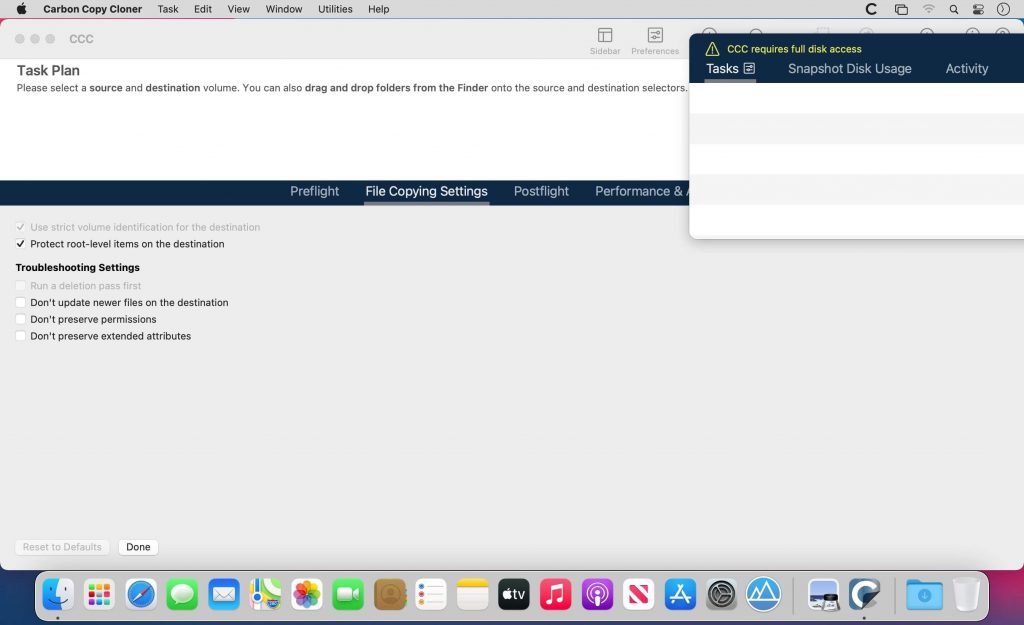
CCC v6 includes a new, cleaner user interface. We reorganized the main window to make it smaller while making many of the controls and font sizes larger. We completely redesigned every window in CCC; revisited every button, every icon, and every color decision to offer a high quality Dark Mode experience. CCC now offers more detailed progress indication while a task is running, including a time remaining estimate. File processing and transfer rates are now charted live during backup tasks. Hover your mouse over the chart to view the current write rate (white) and files evaluated per second (green).

Quick Update: Leveraging FSEvents for super quick updates to the destination
Did you know that macOS keeps track of changes to folders? CCC 6’s Quick Update taps into this service (called “FSEvents”) and the result is lightning quick updates to your backups – no exhaustive scanning for changes required. When Quick Update is enabled for a task, CCC will ask the FSEvents service for a list of folders modified on the source since the last backup rather than scanning every folder for changes. The performance benefit of this feature cannot be understated, we’ve seen up to 20X improvement to backup time, especially for tasks involving a destination network volume.

Compare: Visual comparison of the source and destination
You’ve finished your backup but the source and the destination aren’t exactly the same size; did CCC miss something? Probably not – the disk usage of your source and destination are usually different, but what are the specific differences?

CCC’s Compare feature offers a visual comparison of your task’s source and destination, and provides details if the differences are the result of a task filter. Use this feature to quickly determine if something is missing from the backup, or if folder size differences are simply the result of files sitting in the Trash.

Task Preview: See what changes CCC is going to make before actually making them
If you’ve ever been nervous about what changes CCC may make on a destination volume, you can use the new Preview feature in CCC 6 to see what’s going to happen before making the changes. This “Dry Run” is available via the Preview button in CCC’s toolbar, and any time you save a task for which the SafetyNet feature has been disabled.

Backup Audit: Task History events include a list of transactions
What was copied, and why? You asked for this, and we’re delivering it with style in CCC 6. When your tasks run, CCC will record detailed information about the transactions that occurred during the task, e.g. files copied, files updated, folders created or updated, files deleted or archived. You can view these backup audits in CCC’s Task History window, and never again wonder why CCC copied a particular file.

New scheduling option: Run a backup task “When files are modified on the source”
Using the same underlying technology that’s used by the “Quick Update” feature, CCC 6 offers a new automation option that allows you to have a task run when a threshold of data changes have occurred at the source. So rather than hourly or daily, etc., the task will run after 5GB’s worth of data has changed (for example). You can throttle that with a time limit as well, e.g. don’t run the task more than once every 5 minutes.

Advanced File verification
Previous versions of CCC have included the exhaustive “Find and replace corrupted files” option, but that option has a couple shortcomings that we wanted to resolve. CCC 6 can verify files at the end of the backup task, and also offers the opportunity to verify files on the source and destination, independently, against a hash that was recorded when the file was last copied.

Verifying the integrity of the source or destination

CCC 6 stores the modification date, size, and checksum of every file that was copied by a particular task. On demand, you can ask CCC to evaluate files on either the source or destination (independently of the other volume) against historical checksums. This gives you the opportunity to not only verify the integrity of the backup, but also to verify the integrity of the source.

Verification of files that were copied by the current task event
If you’ve ever migrated data to a new disk, you’ve probably wondered, “How do I know that all of the data was actually copied?” You may also not have realized that media sector failure is most often discovered on read, not on write, which means that data corruption that occurs on the new disk isn’t usually discovered until some time in the future when you try to re-read the files. This new Advanced Setting offers a new postflight task option to verify files that were written to the destination.

Other new features and improvements
Our to do list never ends, and we’re constantly receiving great feedback from users on how we can improve CCC.

Here are just a handful of simple improvements that we’re excited to introduce in CCC v6:

  • Per-task control over the file copier’s CPU usage.
  • You can temporarily pause a backup task.
  • More information about your source and destination right at your fingertips – click on the source or destination selector to see extensive information about the selected volume.
  • Refined Simple Mode – quitting and reopening CCC to switch modes is no longer necessary.
  • Items that cause task errors can be excluded directly from the Task History Errors table.
  • CCC’s Task Filter now offers support for respecting macOS “backupd” exclusions (i.e. exclusions defined for Time Machine).

Yêu cầu: macOS 10.15 trở lên

Carbon_Copy_Cloner_6.0-Final

👉💕Tải Về

Carbon Copy Cloner 6.0.1

👉💕Tải Về

Carbon Copy Cloner 6.0.2

👉💕Tải Về

Carbon Copy Cloner 6.0.3

👉💕Tải Về

Carbon Copy Cloner 6.0.4

👉💕Tải Về

Carbon Copy Cloner 6.0.5

👉💕Tải Về

Carbon_Copy_Cloner_6.0.5.7252

👉💕Tải Về

Carbon_Copy_Cloner_6.1

👉💕Tải Về

Carbon Copy Cloner 6.1.1

👉💕Tải Về

Carbon Copy Cloner 6.1.1.7323

👉💕Tải Về

*. Có thể phải dùng Lulu để chặn kết nối nếu bị báo lỗi bản quyền. App này cần tắt SIP

Các bản cũ hơn xem tại đây

0903064855
0979106855